Admin UI
A guided walkthrough of every section of the Blog-Doc administration interface.
The admin interface lives at http://localhost:3000/admin. It is a browser-based
GUI built with vanilla ES Modules — no framework, no build step.
The sidebar gives you access to everything. Here is what each section does.
Dashboard
The first thing you see when you open the admin. Shows recent posts at a glance, lets you trigger a build, and download the built site.
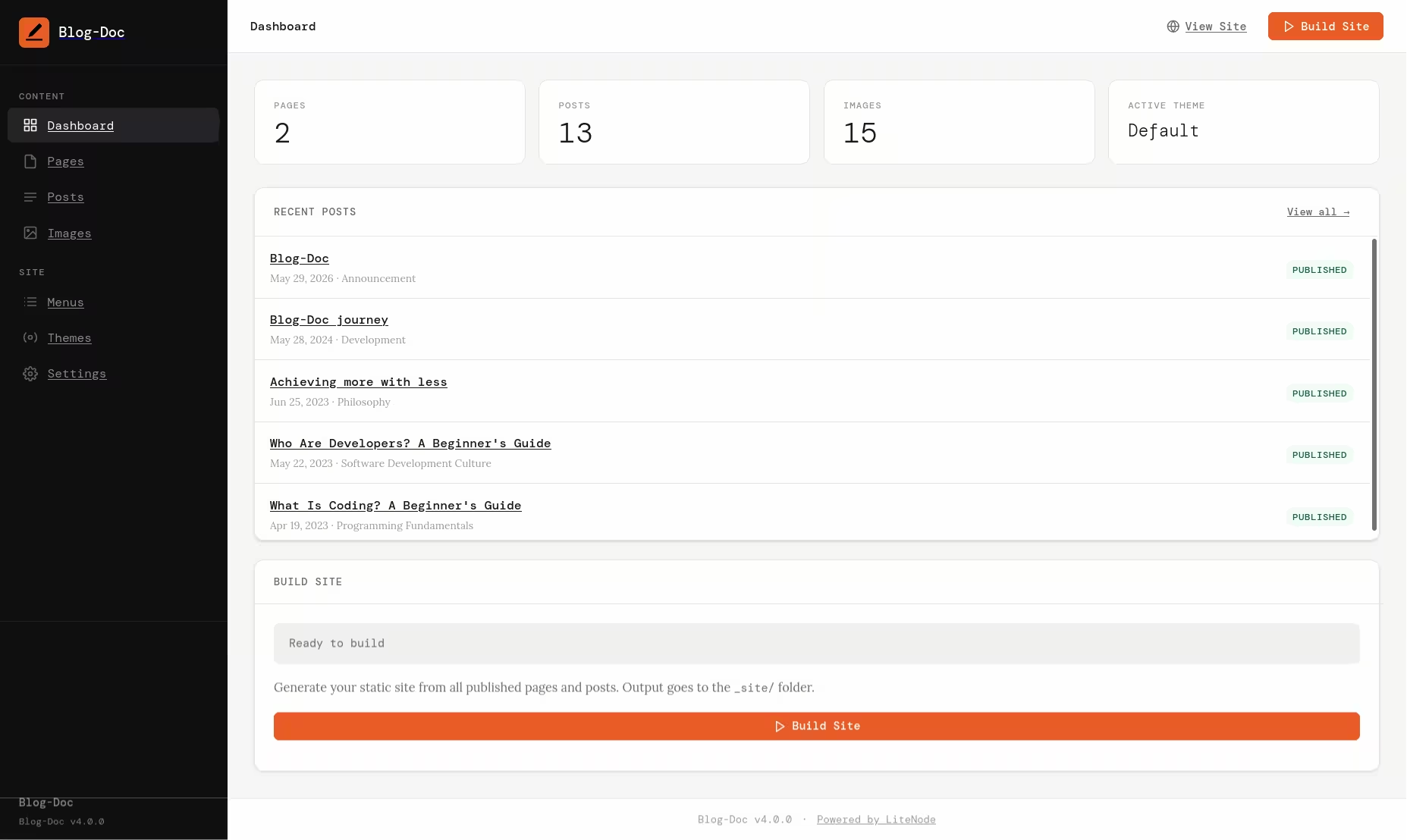 Screenshot of Blog-Doc Admin Dashboard
The Build Site button calls POST /admin/api/build. Build stats
(pages rendered, posts rendered, duration) appear immediately after. The
Download Site button calls GET /admin/api/build/download and
streams _site/ as a ZIP.
Pages
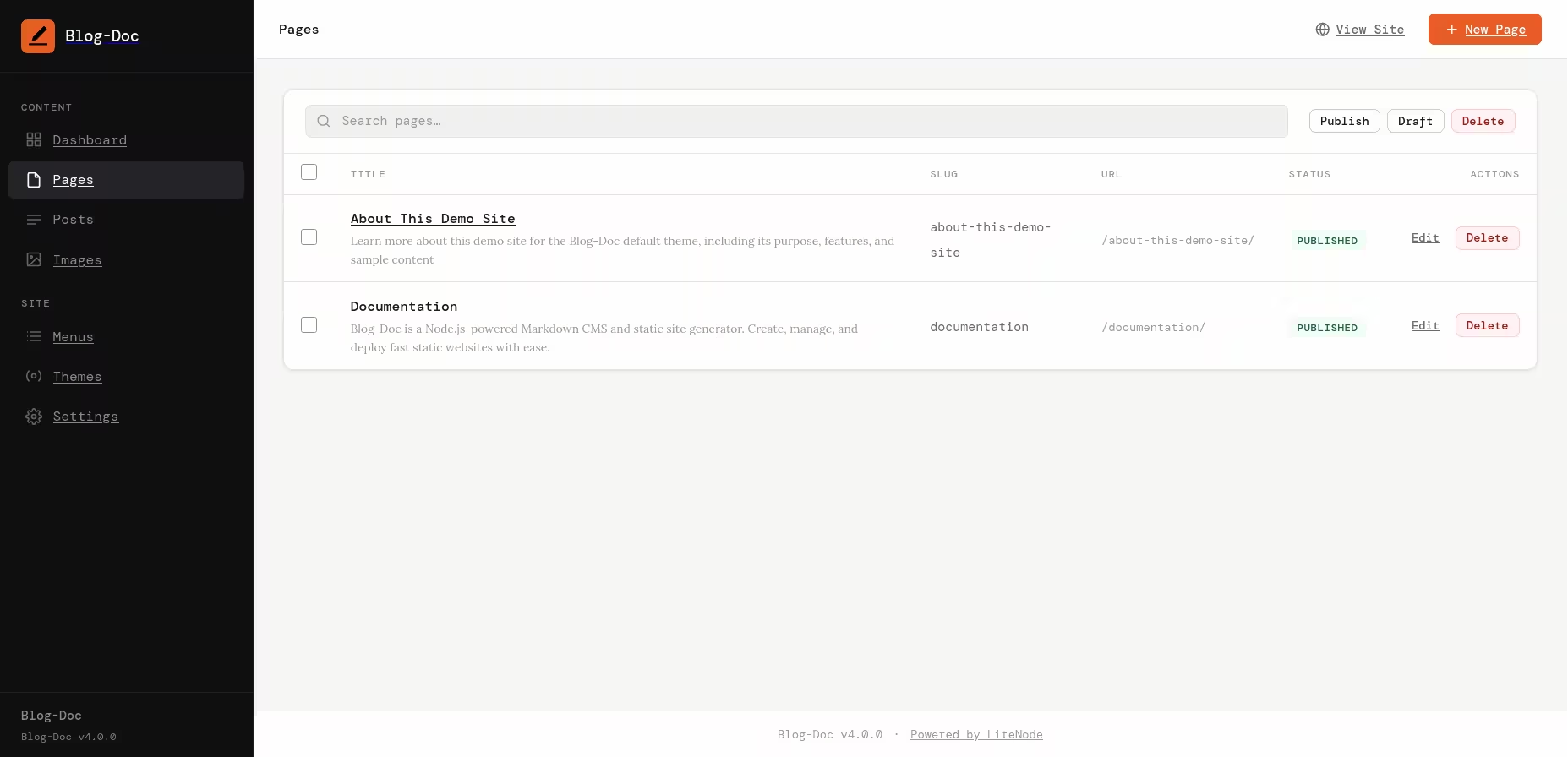 Screenshot of Blog-Doc Admin Pages List
The page list shows all pages (drafts and published) in a searchable table with depth indicators — so you can see at a glance which pages are root, which are children, and which are grandchildren.
Hierarchy — depth-1 root pages have no indent, depth-2 children are indented once, depth-3 grandchildren are indented twice.
Bulk actions — check any rows to reveal the bulk toolbar with Publish, Draft, and Delete buttons. The select-all checkbox in the table header respects the active search filter — it only selects visible rows.
Page editor:
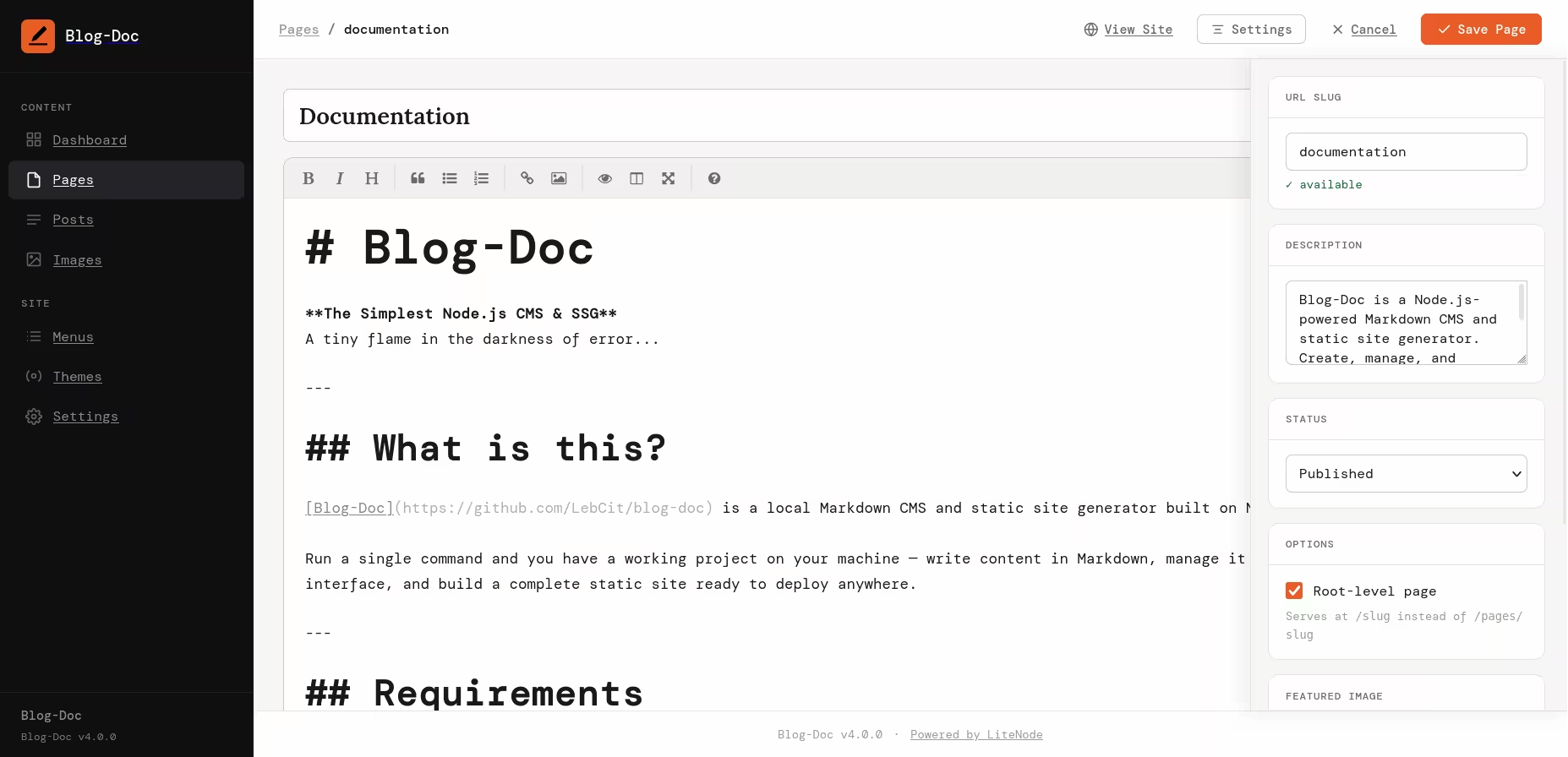 Screenshot of Blog-Doc Admin Page Editor
The editor has:
- Title and slug fields (slug auto-generates from title, editable)
- Parent Page dropdown — pre-populated with eligible parents (root pages and depth-1 pages only)
-
Root page toggle — hides the parent dropdown and serves the page at
/{slug} - Order, description, status, and featured image fields
- EasyMDE Markdown editor with live preview, fullscreen mode, and image picker integration
Posts
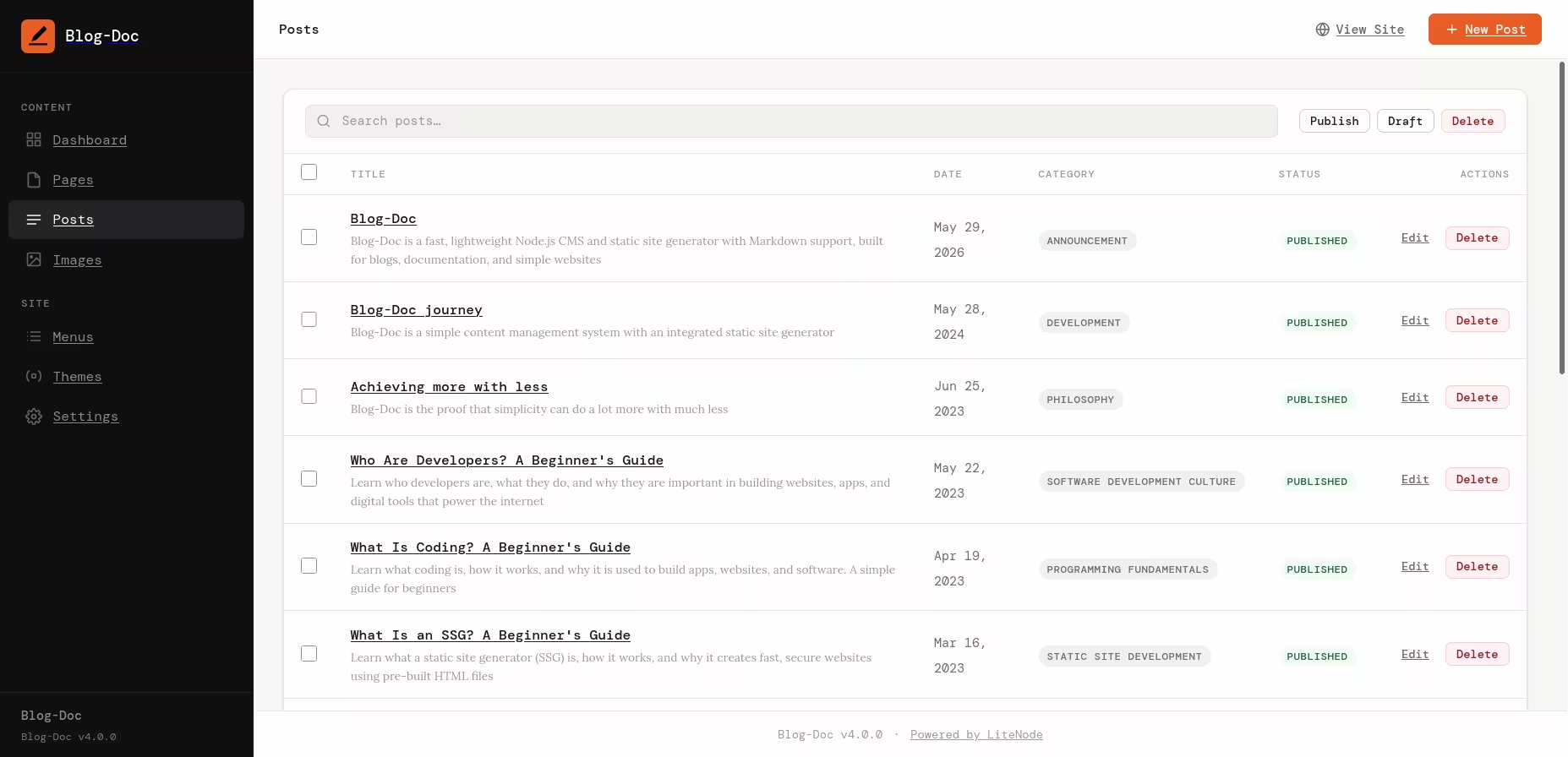 Screenshot of Blog-Doc Admin Posts List
The post list is searchable and sortable newest-first. Bulk publish, draft, and delete work the same as in Pages — but posts have no parent-child constraint, so bulk delete never produces skipped entries.
Post editor:
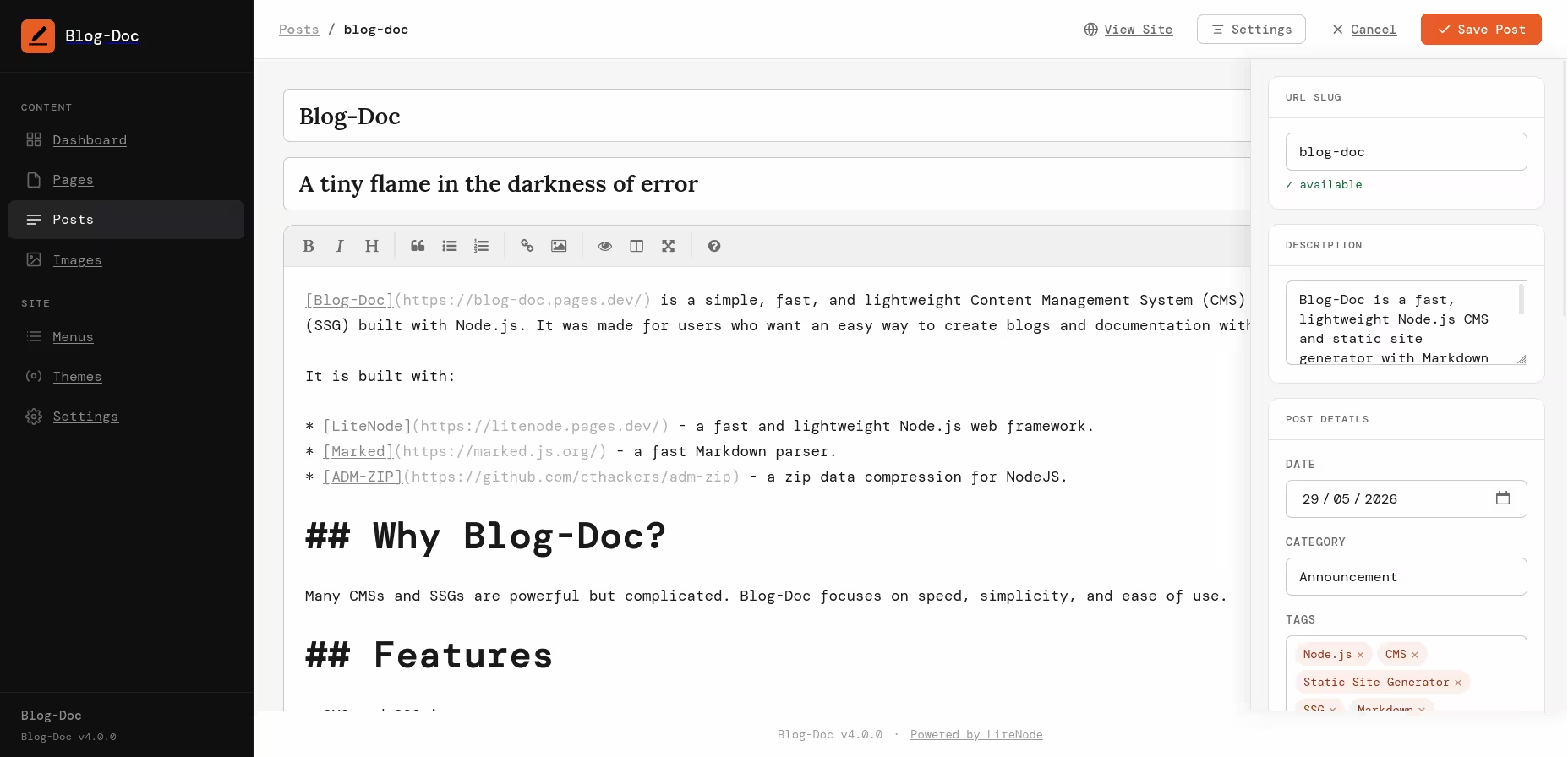 Screenshot of Blog-Doc Admin Post Editor
Post-specific fields: date picker, category, and a tags input that accepts comma-separated values. Tags display as removable chips once confirmed.
Images
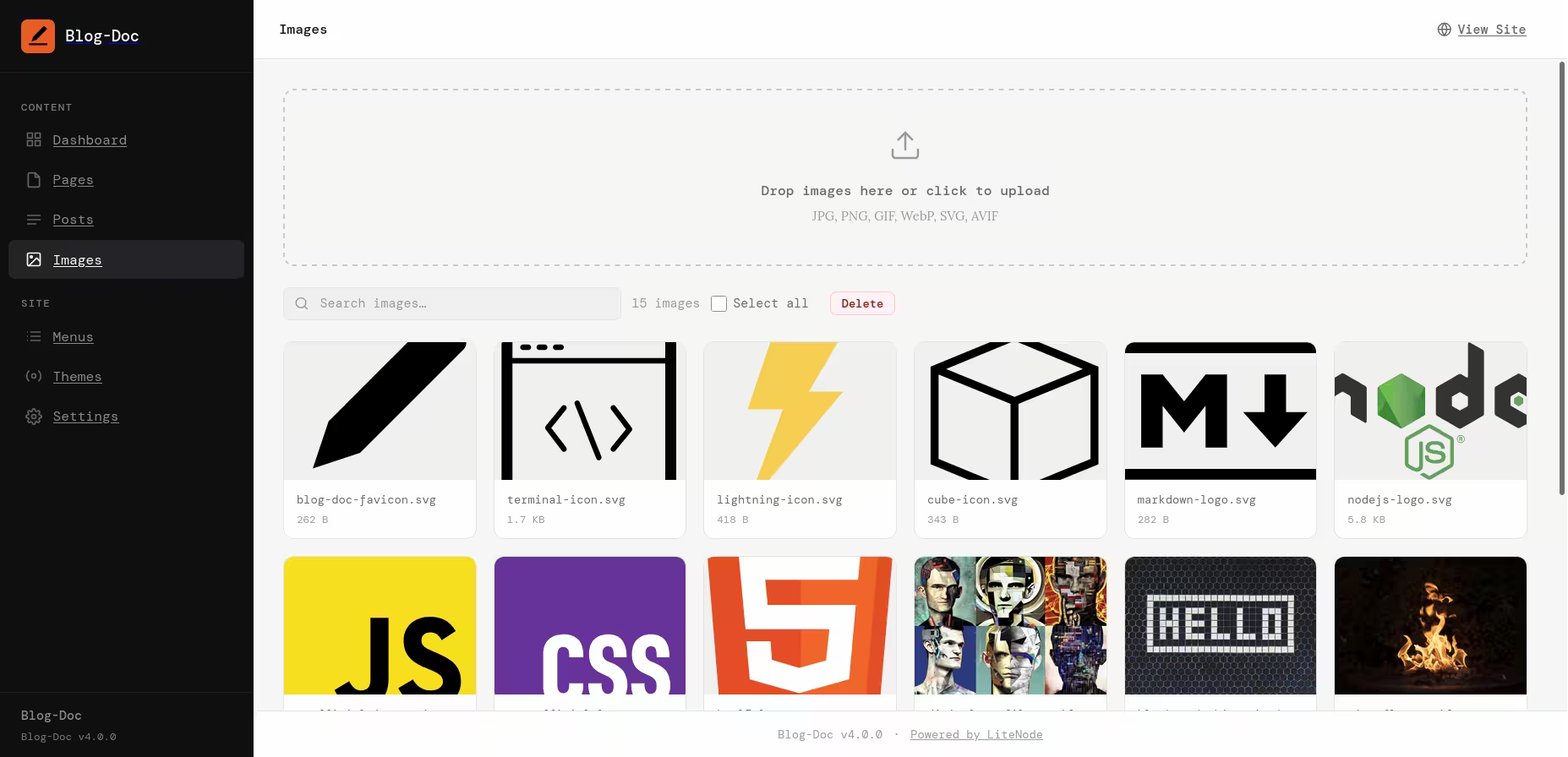 Screenshot of Blog-Doc Admin Images Gallery
A lazy-loaded thumbnail gallery. Upload via drag-and-drop or the file picker — multiple
files at once are supported. Accepted types: .jpg, .jpeg,
.png, .gif, .webp, .svg,
.avif. Size limit: 10 MB per file.
Image picker — when inserting an image into the editor, a modal opens with two tabs: Your Images (your uploaded files) and From Web (paste any image URL). The confirmed image is inserted at the cursor position in the Markdown editor, or set as the featured image depending on which picker was triggered.
Bulk delete works the same as pages/posts — checkbox overlays on cards, select-all in the toolbar.
Menus
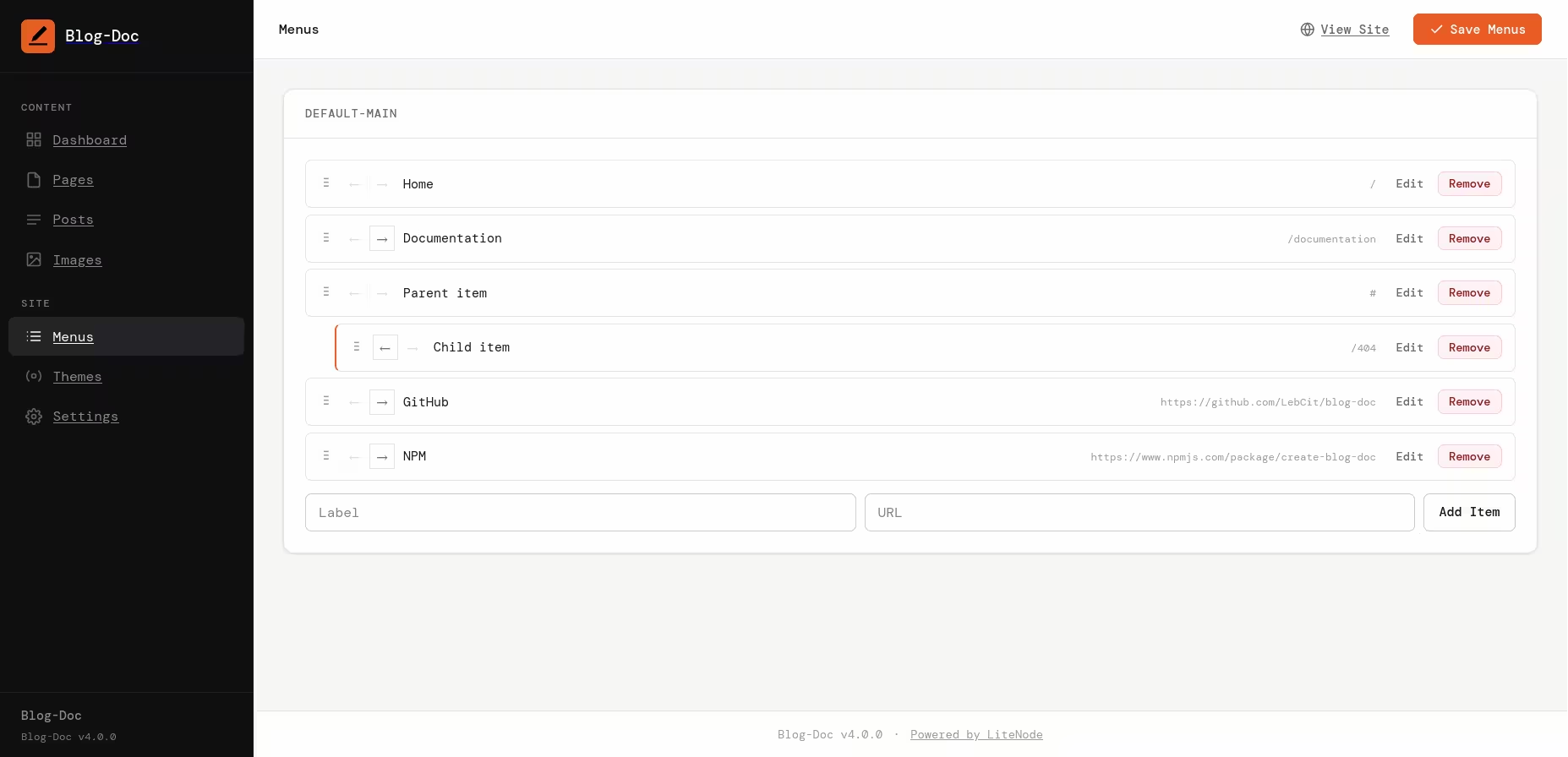 Screenshot of Blog-Doc Admin Menus Editor
The menu editor builds navigation menus for the locations your active theme declares in
theme.json. Each menu location is an editable list of items.
Nesting — drag items left and right to indent/outdent (← → buttons). Depth is capped at 3 levels (0-indexed: root, sub, sub-sub). The editor enforces this: indenting a level-2 item that already has level-2 children is blocked.
Each item has a label and a URL. Blog-Doc stores whatever shape you put in — additional custom fields your theme expects can be added.
Themes
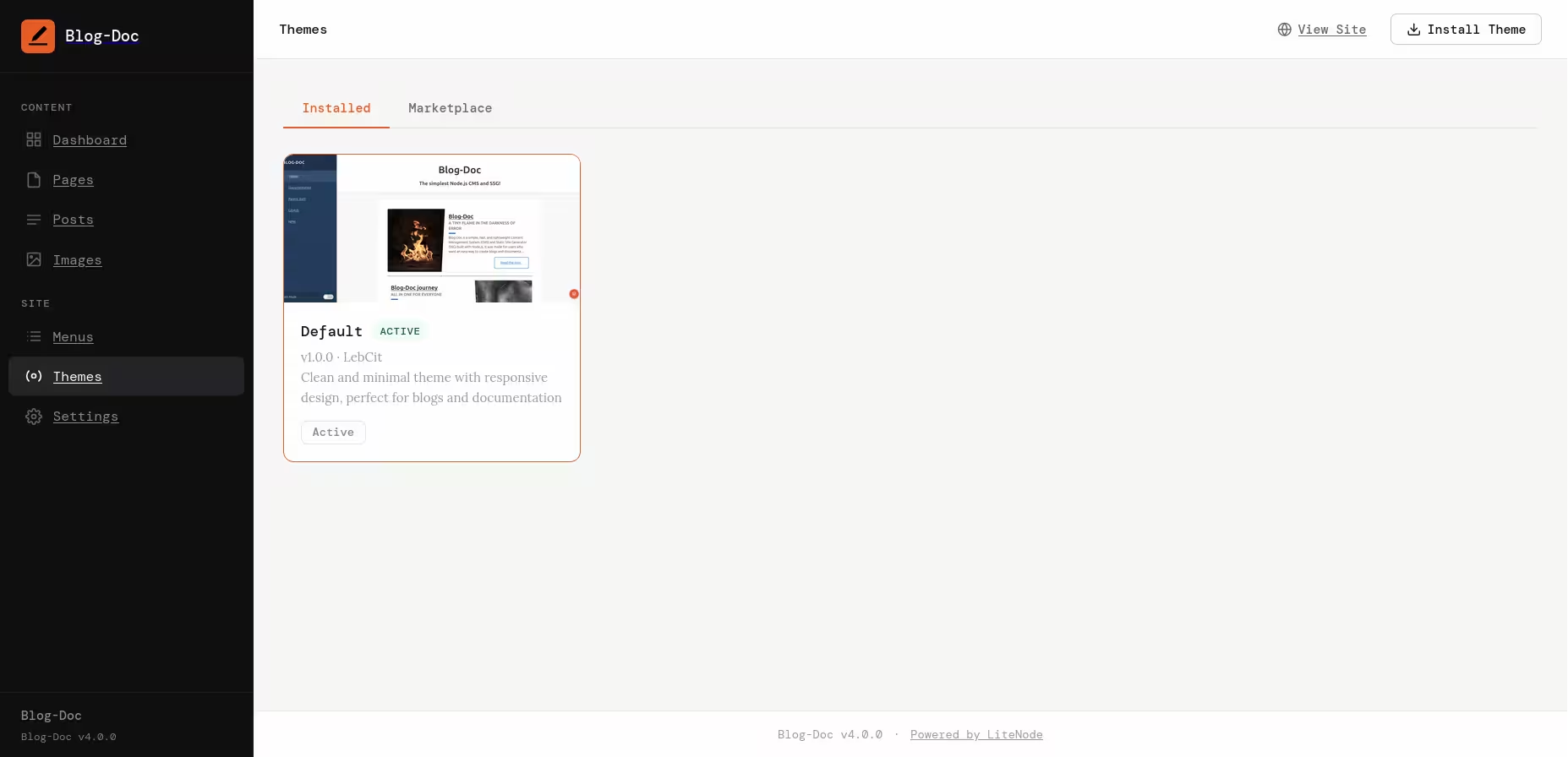 Screenshot of Blog-Doc Admin Themes System
Two tabs:
Installed — shows all installed themes as cards with their screenshot, name, version, and an Activate button. The currently active theme is highlighted. The default theme cannot be deleted.
Marketplace — fetches the remote themes manifest from Codeberg (cached for 30 minutes) and renders browsable theme cards. Click Install to download and install in one step. If a newer version of an already-installed theme is available, an Update available badge and Update button appear on the card.
Settings
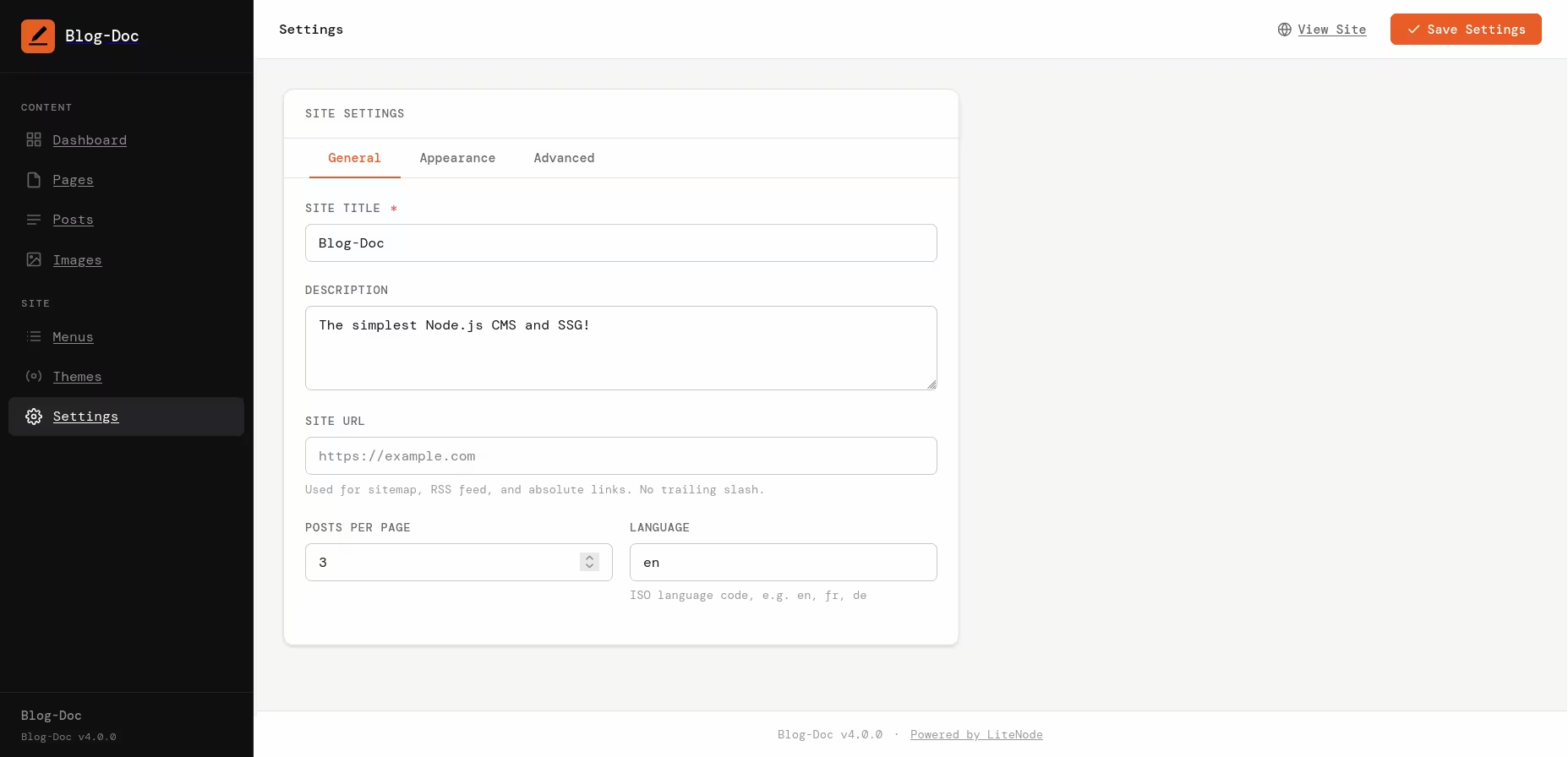 Screenshot of Blog-Doc Admin Settings
Settings are split into three tabs:
General — Site title, description, public base URL (used in sitemap and RSS), posts per page, and language code.
Appearance — Site logo and site icon/favicon. Each field has an image
picker button that opens the image modal, a preview of the currently set image, an
× button inside the input to clear the value, and a bin icon overlay on the
preview that does the same.
Advanced — Custom HTML injected into <head> on every
theme page (headerCode), and custom HTML injected before
</body> (footerCode). Use these for analytics scripts,
custom fonts, or any global markup your theme doesn't already include.